
Remove or reset an Agent with the cleanup utility
PrintMaster Agent Cleanup is a standalone recovery utility. Use it when you need to remove an old or incomplete Agent installation before reinstalling, or deliberately reset an Agent’s local state. It is not an updater, an unattended fleet-removal tool, or a way to remove the PrintMaster Server.
This guide covers v0.1.0, the first stable release, including Windows leftover-directory recovery, a centered Start screen, two-column installation cards, an always-visible data caution panel, and clear completion outcomes. See the release notes for the available downloads.
All screenshots were rendered from the actual desktop UI using synthetic Windows installation data and a mock cleanup backend. No real services or files were removed to capture them. Paths and outcomes are examples, not evidence that your device has been cleaned. Linux and macOS use the same wizard, with platform-specific inventory.
Before you begin
- Choose a maintenance window: removing an Agent interrupts its discovery and Server communication.
- Back up any configuration, identity, queued state, or diagnostics you need. See backup and recovery.
- Data is preserved by default. Purge is a separate, irreversible opt-in that can erase configuration, Agent identity, databases, credentials, logs, and update trust at the reviewed locations.
- Review every selected installation. Unknown Agent-named services, processes, uninstall registrations, or unrecognized bootstrap-directory contents block removal rather than being guessed at or deleted.
- Shared PrintMaster Server directories and accounts are outside the utility’s scope. Never delete the shared
PrintMasterroot to bypass a bootstrap warning.
For normal maintenance or upgrades, use the existing installation’s update path instead. A fresh-install bootstrap deliberately refuses existing Agent installations and state.
Download and launch
Download from the official Agent Cleanup releases. Test against representative disposable installations before broad deployment.
| Platform | Release asset | Requirements |
|---|---|---|
| Windows x64 | agent-cleanup-windows-amd64.exe | Accept the Administrator UAC prompt. Declining cancels startup. |
| Linux x64 | agent-cleanup-linux-amd64 | A graphical desktop and Fyne’s native graphics dependencies for the GUI. Use CLI commands on headless hosts. |
| macOS Intel | agent-cleanup-darwin-amd64 | A graphical session. Native cleanup coverage is best-effort. |
| macOS Apple Silicon | agent-cleanup-darwin-arm64 | A graphical session. Native cleanup coverage is best-effort. |
Use the accompanying SHA256SUMS to compare the asset’s checksum. For example, on Windows:
Get-FileHash .\agent-cleanup-windows-amd64.exe -Algorithm SHA256
On Linux, use sha256sum; on macOS, use shasum -a 256. The checksum identifies the downloaded bytes but is not a substitute for trusting the release source.
On Linux or macOS, mark the downloaded binary executable before launching it. For example, on Linux:
chmod +x ./agent-cleanup-linux-amd64
./agent-cleanup-linux-amd64
Launch with no arguments to open the GUI. gui and --gui also select the GUI. Only Windows automatically requests elevation. On Linux and macOS, a non-root session can scan but removal requires relaunching with root privileges in an environment that permits graphical applications. Do not weaken display-server permissions just to run an elevated GUI; use the CLI when an elevated graphical session is unavailable.
1. Start: launch a read-only scan
The Start screen presents a vertically centered, splash-style introduction and Scan this device button. The heading reads PrintMaster Agent Cleanup Tool. The current wizard step has a tinted highlight and a blue underline spanning its section, in addition to the emphasized label. It does not scan automatically. Select the button when ready; scanning happens between Start and Select. The utility checks known installation paths, service/package ownership, running Agent processes, and associated data locations. Scanning does not mutate the device.
The application window opens centered on its monitor. Windows builds embed the printer icon for the executable and taskbar, in addition to the in-app logo.
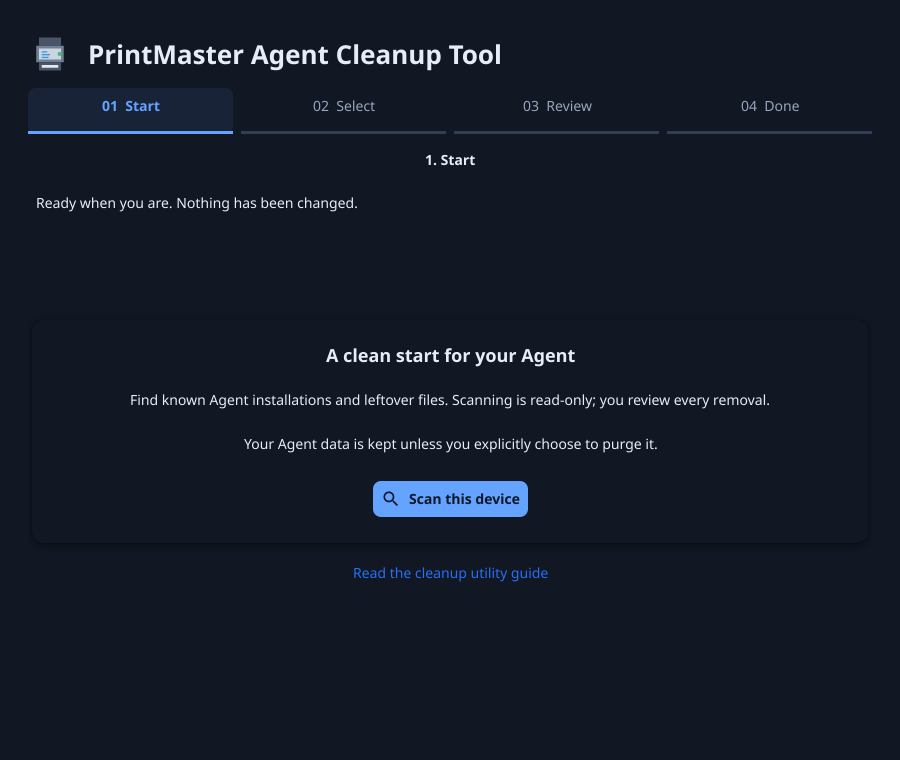
The welcome screen’s Read the cleanup utility guide link opens this page in your browser.
A clean scan goes directly to Done. Selection and removal controls appear only when there are findings to review.
2. Select: choose installations and the data policy
Recognized installations appear as selectable cards, in two columns when there are multiple findings. Expand Paths and identification evidence to inspect exact paths, ownership evidence, and discovered processes. Advanced diagnostics contains the technical inventory JSON and a copyable CLI scan command.
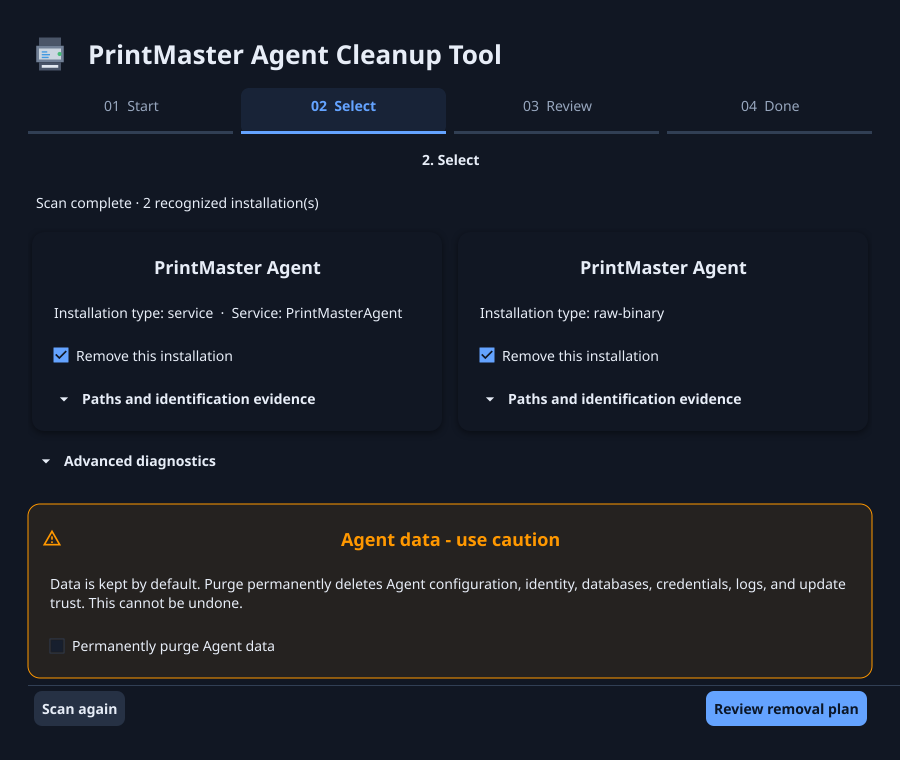
The amber Agent data - use caution panel stays visible beneath the scrolling installation list, with a warning icon, highlighted border, and explicit irreversible-deletion warning. Leave Permanently purge Agent data unchecked to preserve state for later reuse. Select it only for a deliberate reset after backing up anything you need.
If entries are unrecognized, removal is blocked. Resolve them with the installation owner or collect diagnostics for support; do not broaden paths or delete shared directories to make the warning disappear.
Leftover machine-wide Windows Agent data can be listed even when its executable is gone. Empty bootstrap bin and protected Program Files PrintMaster\Agent directories can also appear as recoverable leftovers. See bootstrap recovery below.
3. Review: inspect the plan and hold to confirm
The compact review screen summarizes the selected installations, action counts, and data policy. Expand View full removal details for exact targets and reasons. Use Back to selection to change the selection or purge setting.
When ready, press and hold Hold to Confirm for three seconds. The button fills from left to right. Removal starts automatically when the button fills, without requiring you to release and without another confirmation popup.
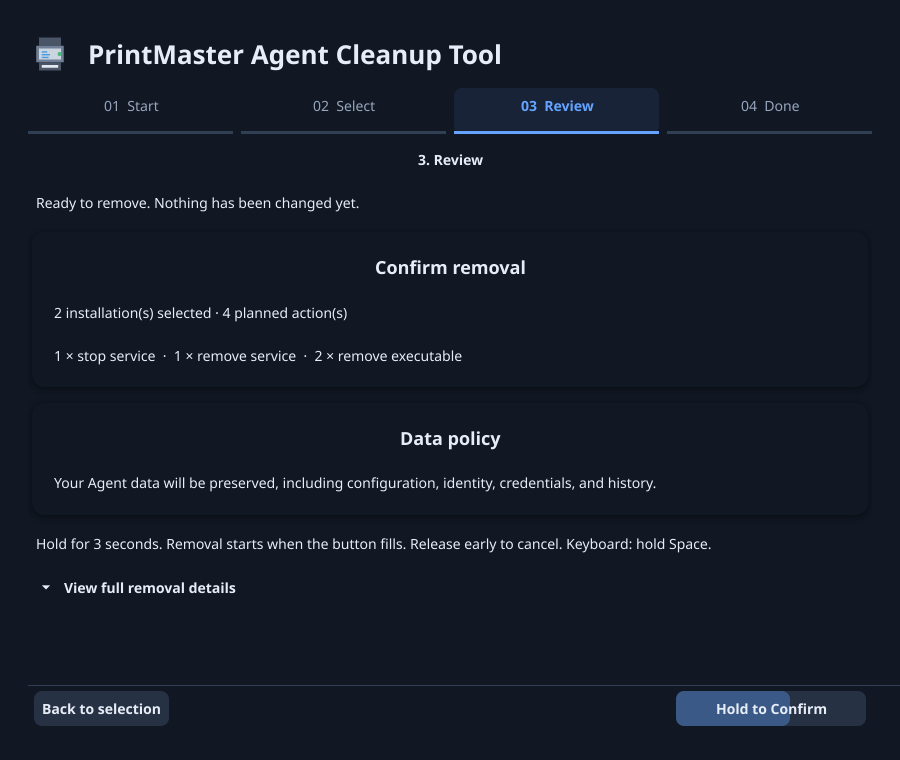
- Release before three seconds to cancel the hold.
- Moving off the button, losing focus, or returning to selection resets it.
- Keyboard users can focus the button and hold Space.
- Once the hold completes, removal has started. Releasing afterward is not an undo.
During removal the page shows an activity indicator. Do not close the window. If an action fails, cleanup stops and reports the error; some earlier actions may already have completed.
4. Done: check the outcome and return to the beginning
The Done page gives a quick visual outcome:
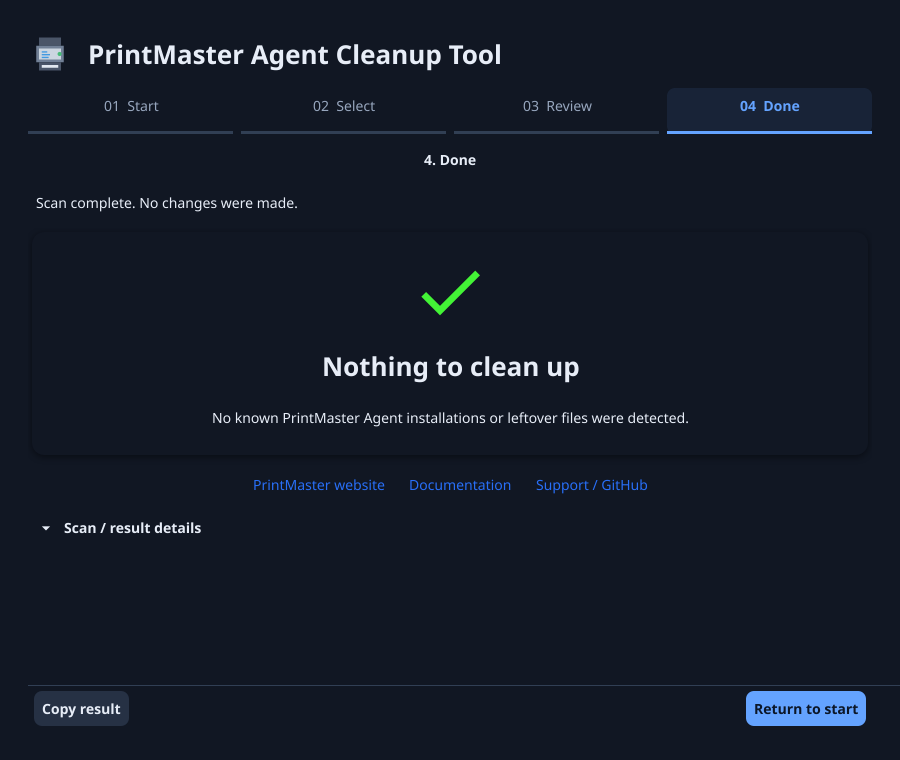
- Nothing to clean up with a large green check means the scan found no known Agent installations, leftover files, or unrecognized entries. The utility skips Select and Review, and no changes were made.
- All cleaned up with a large green check means removal of the selected components completed successfully. The message states whether Agent data was preserved or purged; it does not claim that unselected installations were removed or that a verification scan ran.
- Scan and removal failures show the error without a green check. Unrecognized entries and leftovers stay on Select for review; they never count as a clean scan.
The page provides Copy result, collapsed Scan / result details, and links to the PrintMaster website, documentation, and GitHub support. Copied results include the scan inventory from before any cleanup.
Clean scan: nothing to clean up
Successful removal: all cleaned up
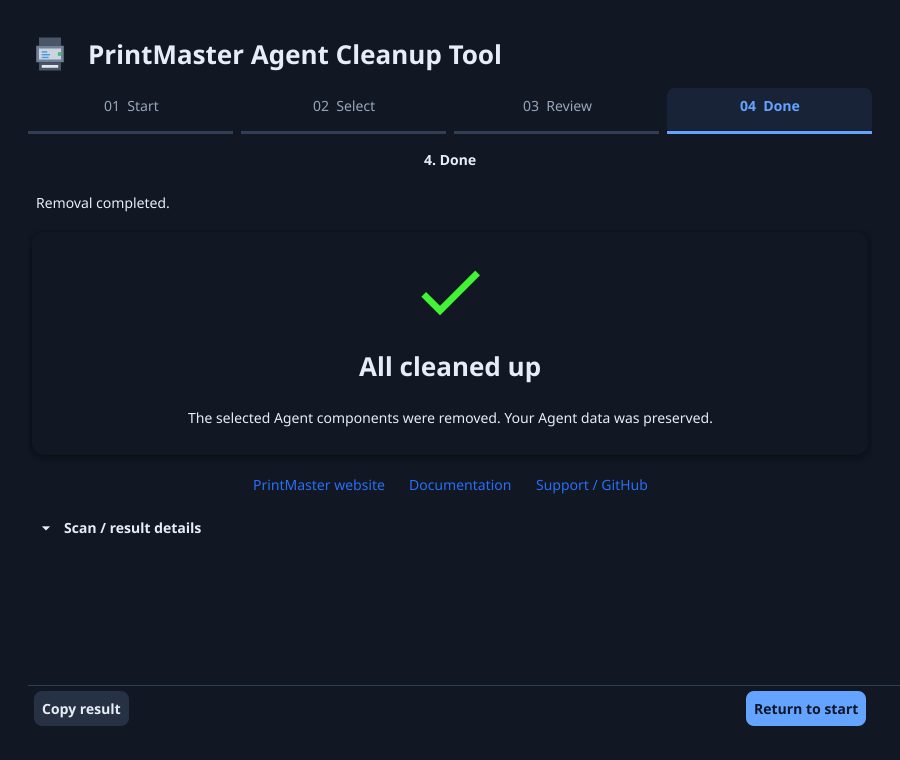
Choose Return to start to return to the step 1 Start screen. This does not start another scan. Select Scan this device when ready to verify what remains before reinstalling, or close the utility when finished.
A typical flow with one or two installation cards fits without scrolling at a window size of 900 by 760 or larger with standard text scaling and details collapsed. Expanded details, additional installations, smaller windows, larger text, or long errors may need scrolling; the selection data policy and action controls remain visible.
Bootstrap still refuses a fresh install
A bootstrap message such as Existing Agent files or data found at C:\ProgramData\PrintMaster\bin means the fresh-install guard found that path. It does not necessarily mean an Agent process is still installed: the guard rejects even an empty directory.
Existing protected Agent installation found refers to PrintMaster\Agent beneath Program Files or Program Files (x86). Depending on the Server version, the bootstrap message may not name the exact blocking directory. Compare both locations with the cleanup inventory. Updating the cleanup utility does not change a bootstrap script served by the Server.
To recover:
- Return to start and scan again.
- Review cards labeled Leftover Agent files / directories.
- If only an empty bootstrap
binor protected Program FilesPrintMaster\Agentdirectory remains, select it and review the plan. Removing an empty installation directory does not require purging Agent data. - If Agent data remains and you want a completely fresh installation, back it up and explicitly select Permanently purge Agent data.
- Hold to confirm, then return to start and rescan before retrying bootstrap.
The empty-directory action is non-recursive. It refuses linked paths or a directory with remaining files. Unknown or shared installation-directory contents are reported and block removal; they are not erased. Registered MSI contents remain managed by Windows Installer. Shared PrintMaster parent directories are not allowed empty-directory removal targets. If a location cannot be inspected, the scan fails with an error rather than showing a green check.
Preserved Agent data may intentionally continue to block a fresh bootstrap. That is different from an empty-directory leftover: decide whether the data should be retained, restored through an owner-controlled installation process, or explicitly purged.
Other recovery and error cases
| What you see | What to do |
|---|---|
| No recognized installations, but bootstrap refuses existing paths | Compare the exact refused path with inventory and use the latest cleanup release. Retain diagnostics and do not manually delete a shared root. |
| Unrecognized service, process, uninstall entry, or bootstrap remnant | Stop and review the named item with its owner. Use Advanced diagnostics and the CLI scan output for support. |
| Read-only scan / privileges required | On Windows, relaunch and accept UAC. On Linux/macOS, use an appropriate elevated session or CLI. |
| Removal stopped, including access denied while elevated | Use Copy result to retain the exact failed action, target, and OS error, then return to start and rescan. Administrator rights do not guarantee access to every protected or locked resource. Cleanup handles the case where service shutdown has already ended an inventoried process before its stop action; failures against a still-running process remain explicit. Do not assume that nothing changed or repeatedly retry the old plan. |
| The removal button does not activate on a click | It requires a continuous three-second hold. Focus loss and leaving the button cancel the hold. |
| GUI unavailable on a headless host | Use the CLI below; do not enable an insecure graphical session. |
CLI and remote support
The same executable supports explicit commands. Windows attaches to the launching console when possible and preserves redirected output.
agent-cleanup scan --json
agent-cleanup plan
agent-cleanup plan --purge-data
agent-cleanup remove --yes
agent-cleanup remove --yes --purge-data
Replace agent-cleanup with your downloaded asset’s path. For example, in Windows PowerShell:
.\agent-cleanup-windows-amd64.exe scan --json
.\agent-cleanup-windows-amd64.exe plan
scan and plan do not change the device. Review a plan before running remove. Removal rescans immediately before execution, requires Administrator/root privileges, and refuses unknown inventory. --yes authorizes removal; adding --purge-data authorizes irreversible data deletion. JSON output is available for scan only.
Inventory and error reports can contain machine paths and operational details. Review them before sharing publicly.
Supported installation families
- Windows: known current and legacy MSI products, recognized bootstrap/service/raw Agent executables, and supported per-user layouts. A legacy bootstrap uninstall entry is removed only when its exact identity and commands match the known Agent executable.
- Linux:
printmaster-agentDEB/RPM packages, supported direct binaries and systemd services, and known per-user layouts. - macOS: supported direct/Homebrew executable locations and known system/user launchd registrations. Coverage remains best-effort until validated against representative historical installations.
Symlinks and linked descendants are refused for data purge. Package managers and Windows Installer remain responsible for package-owned files. The utility does not reboot the device or remove Server state or shared accounts.